Planning & Scheduling Fundamentals – course intro video
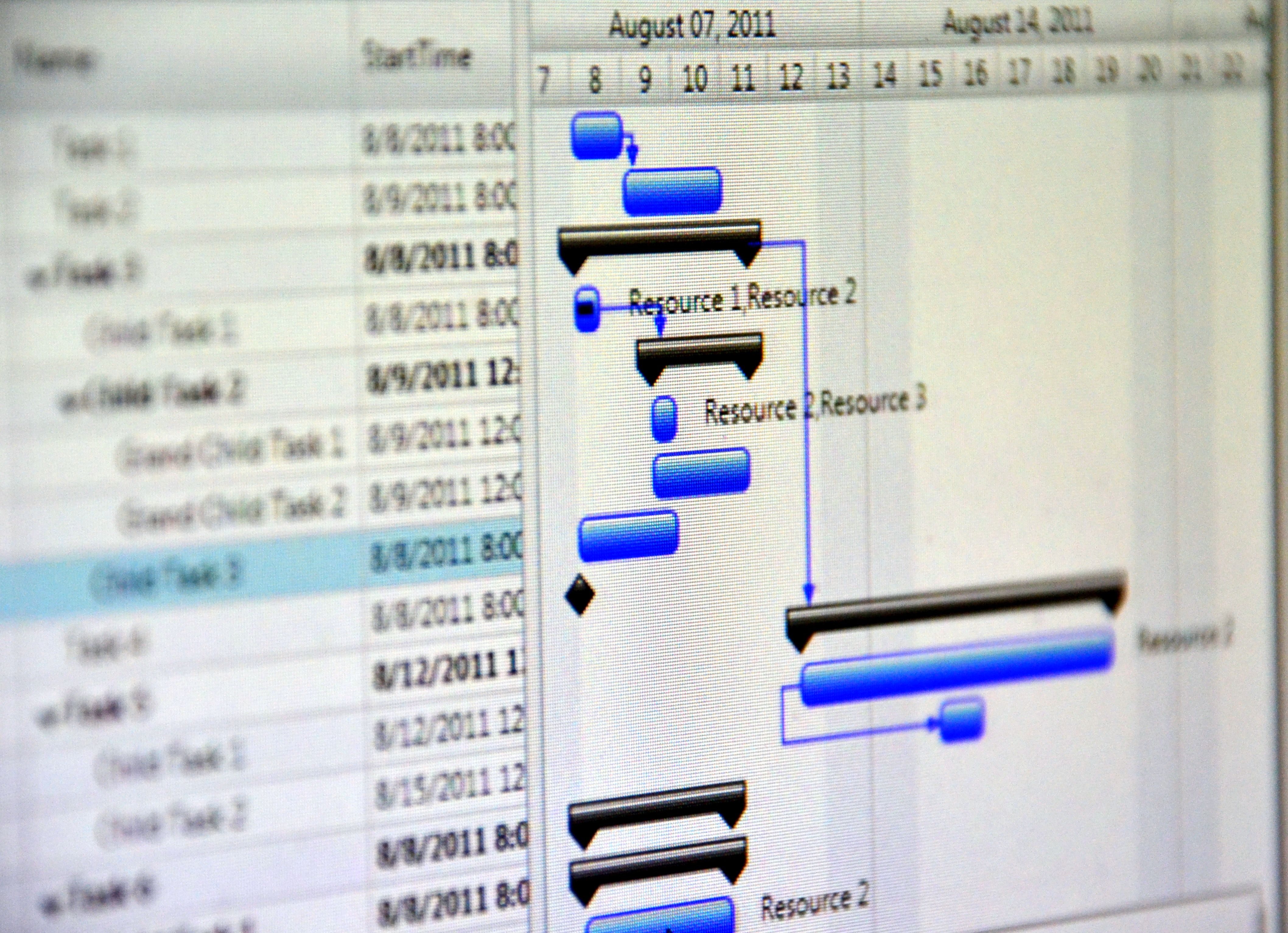
Here's a summary of some helpful P6 tips, tricks, and shortcuts for using Primavera P6 software:
Quick Activity Search: Use Ctrl-F to quickly find activities in your schedule.
Export to Excel: Select all activities with Ctrl-A, then right-click and choose Export to Excel, or use Ctrl-C to copy and Ctrl-V to paste into Excel.
Import from Excel: You can import schedules from Excel into Primavera P6. Use a template in Excel first for best results.
Export and Import Layouts: Layouts can be exported as *.plf files and shared with team members.
Gantt Chart Formatting: Customize bars and colors for easier reading and better interpretation.
Quick Logic Ties (Finish-to-Start Relationships): Highlight tasks and right-click to select Link Activities.
Critical Path Method Settings: Choose between Total Float Less Than Or Equal to and Longest Path options to determine the critical path.
Detailed Scheduling with Steps: Use P6's steps feature to add detail to your schedule without increasing the number of activities.
Primavera P6 Keyboard Shortcuts
-
File Menu: ALT + F
-
Edit Menu: ALT + E
-
View Menu: ALT + V
-
Find: CTRL + F
-
New Project: CTRL + N
-
Open Project: CTRL + O
-
Schedule (Run): F9
-
Refresh: F5
-
Print: CTRL + P
-
Cut: CTRL + X | Paste: CTRL + V | Delete: Del